Manual Mobile Apps
Swifto deploys 4 mobile apps in the field — CRM, Seller, POS and Swifto IA — permanently connected to the back office. Teams enter orders, sales and payments, check their figures in natural language, online or offline, and everything then synchronizes automatically.
Overview
Swifto's field mobility relies on four applications, each dedicated to a specific job. Each one connects to the back office via its own secure channel, retrieves its reference data and sends field entries back to it — or, for Swifto IA, queries the data live.
Swifto CRM
Sales management: customers, visits, sales rep orders. SmartCrmWS
Swifto Seller
Van sales: loading, sales, return notes. SmartSellerWS
Swifto POS
Register on tablet or touchscreen: login with label and password. SmartPosWS
Swifto IA
Conversational assistant: your figures in natural language. Dedicated guide
Back office
The ERP core: receives, validates and redistributes all field data.
One account, one device, one company
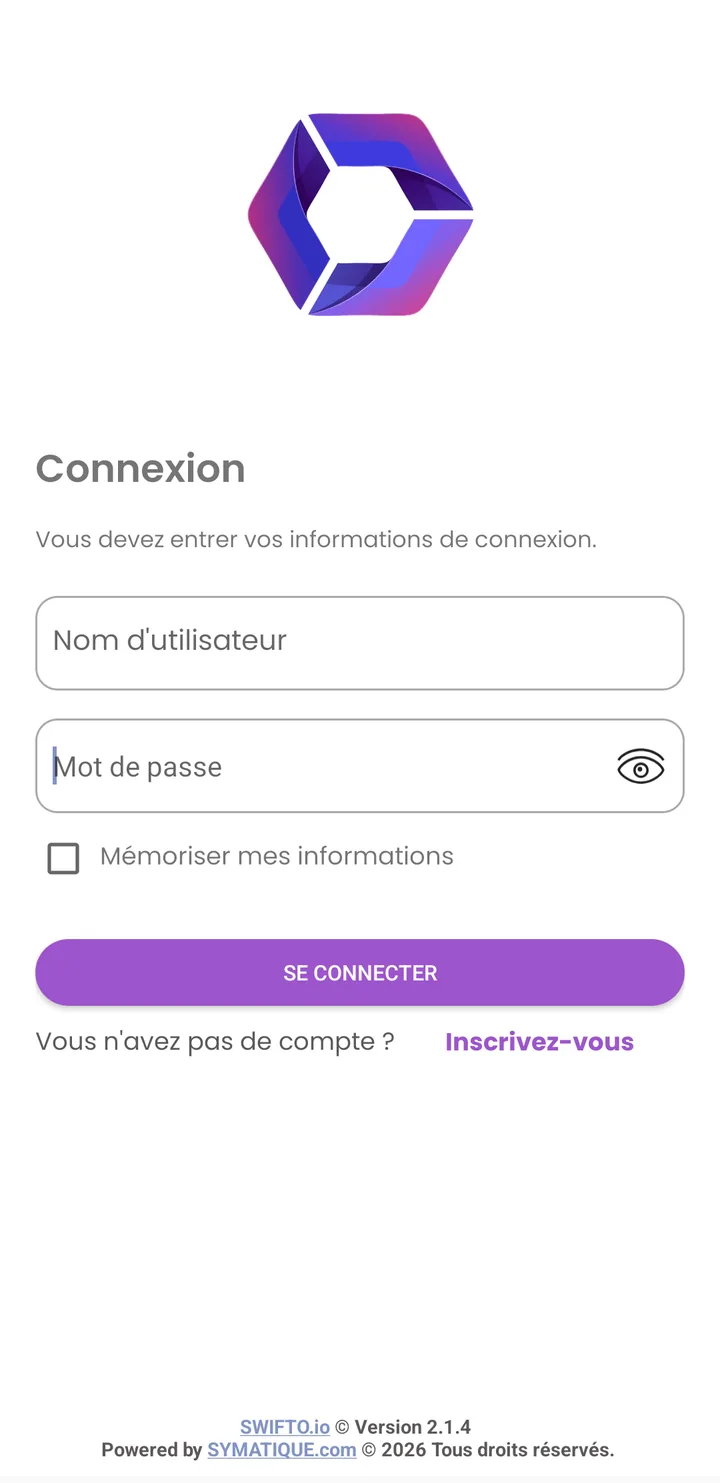
Each user logs in with their back-office credentials; the device is paired (unique phone identifier) and linked to a company. Data stays siloed by company.
Swifto CRM Mobile
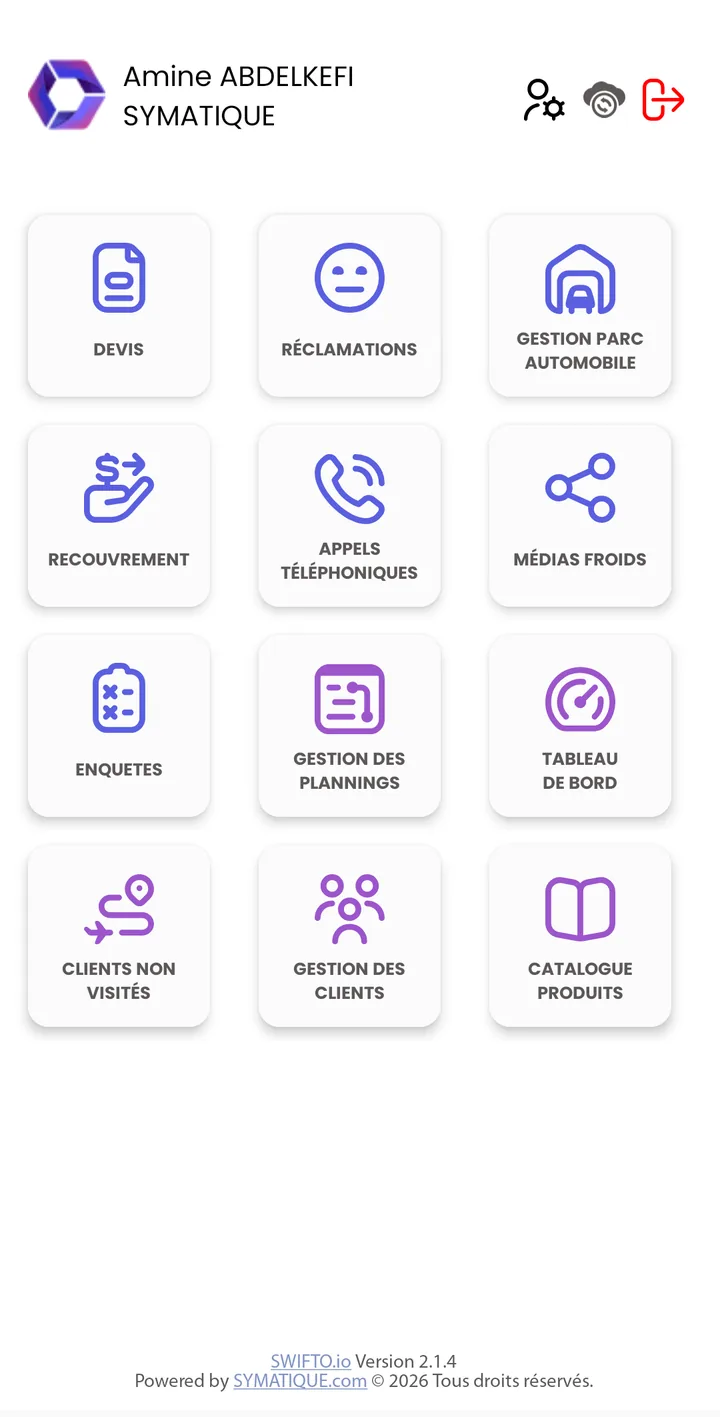
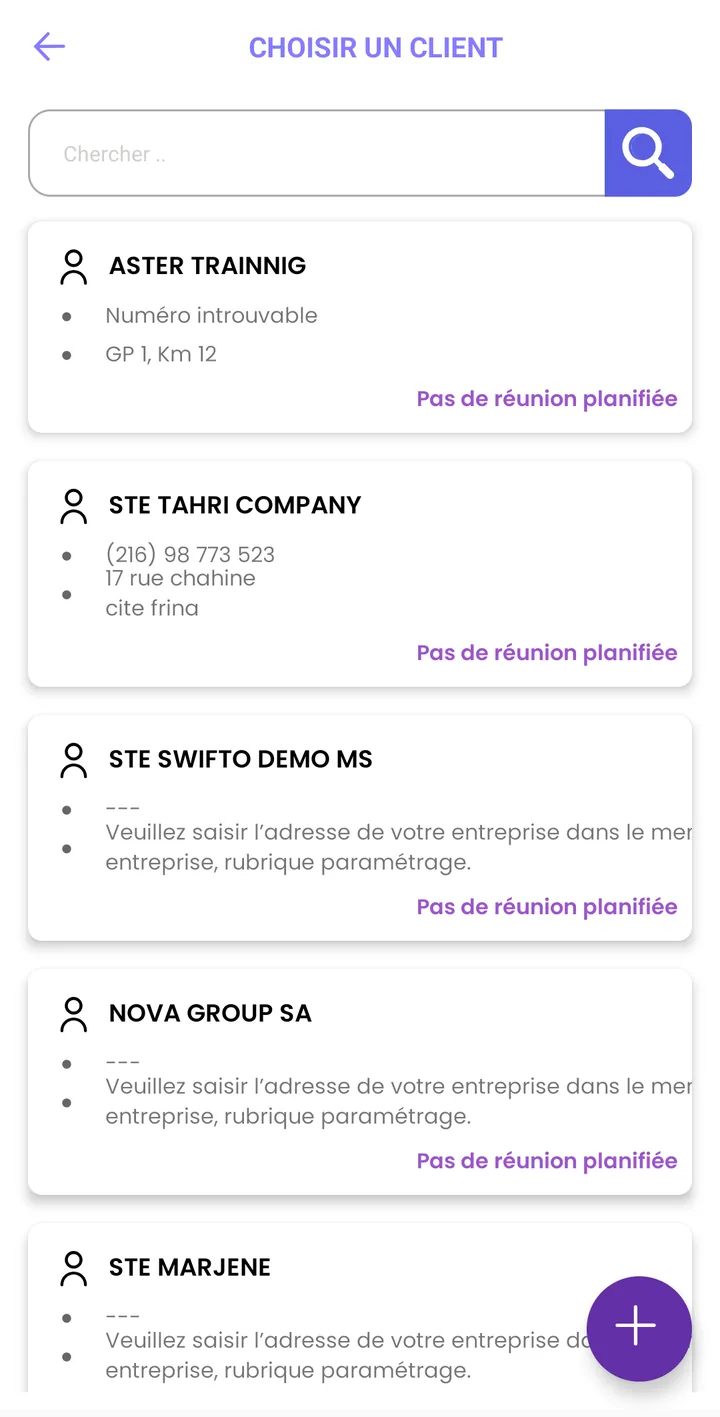
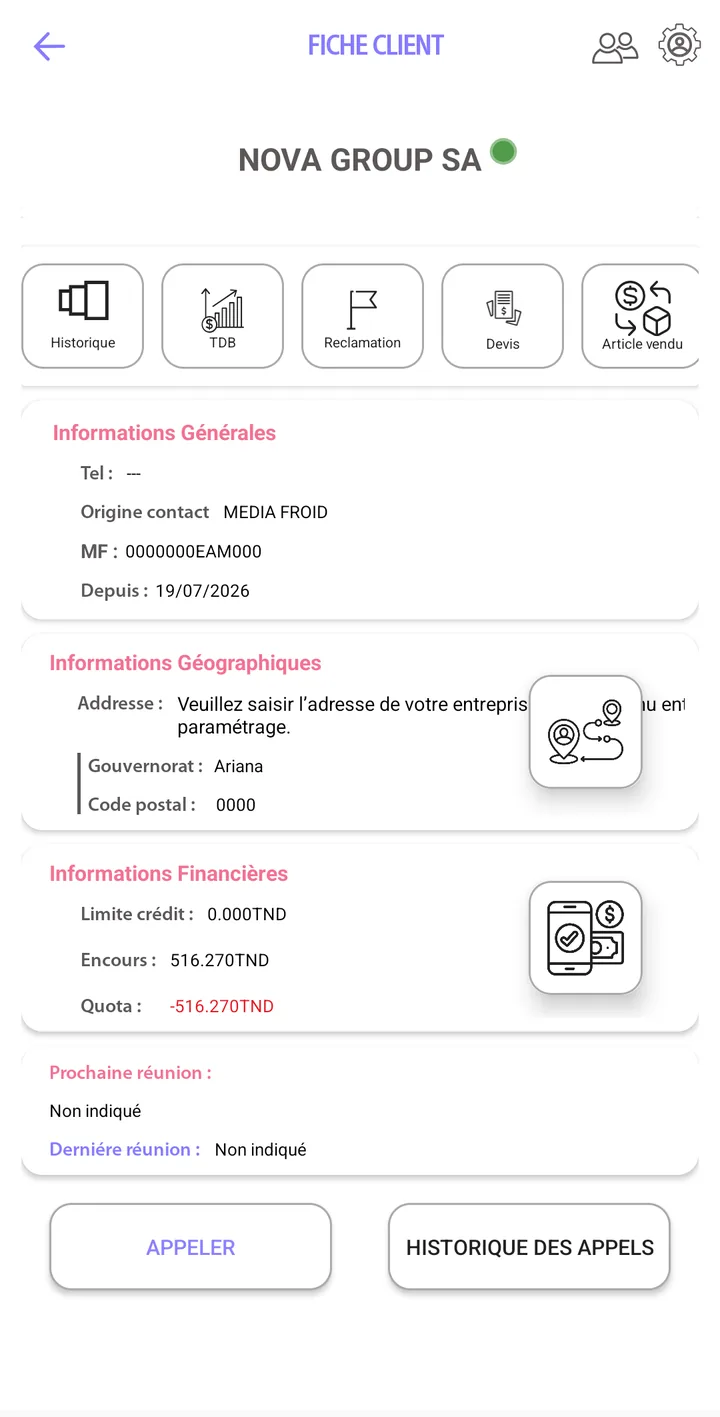
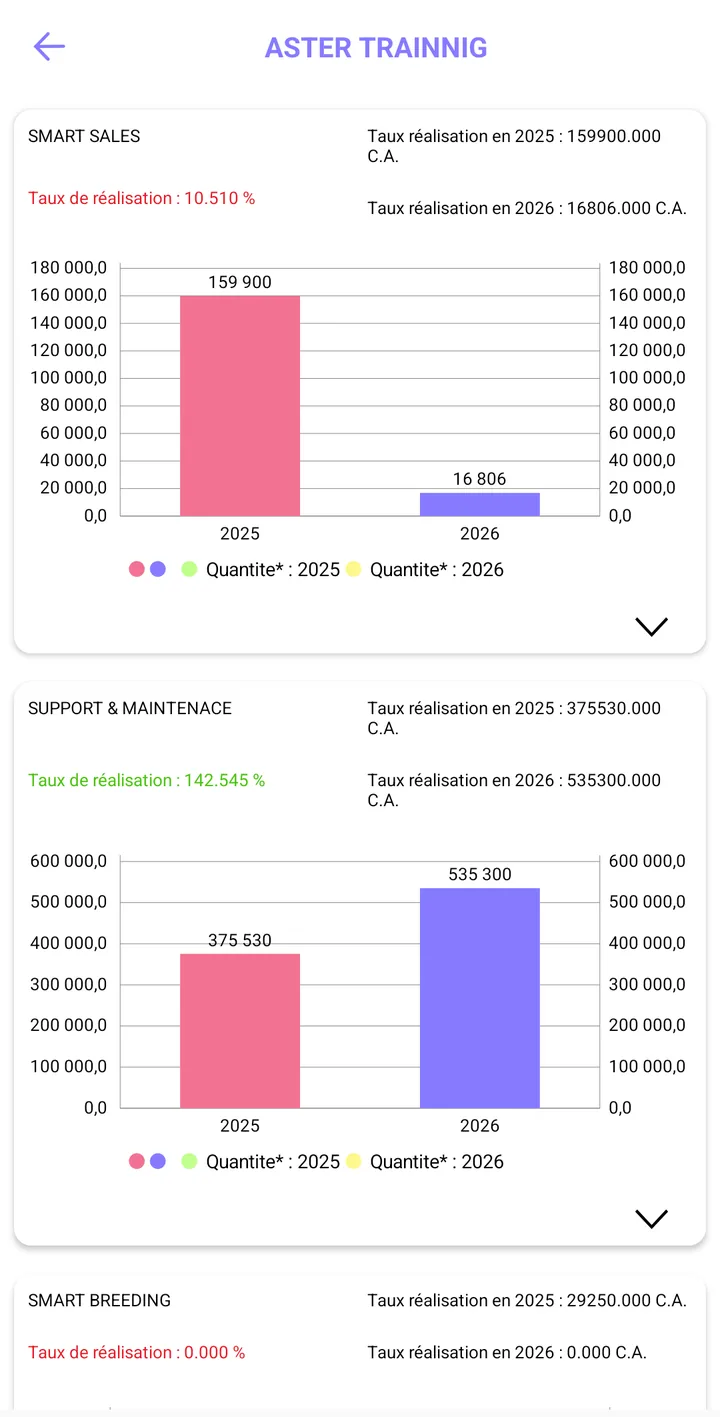
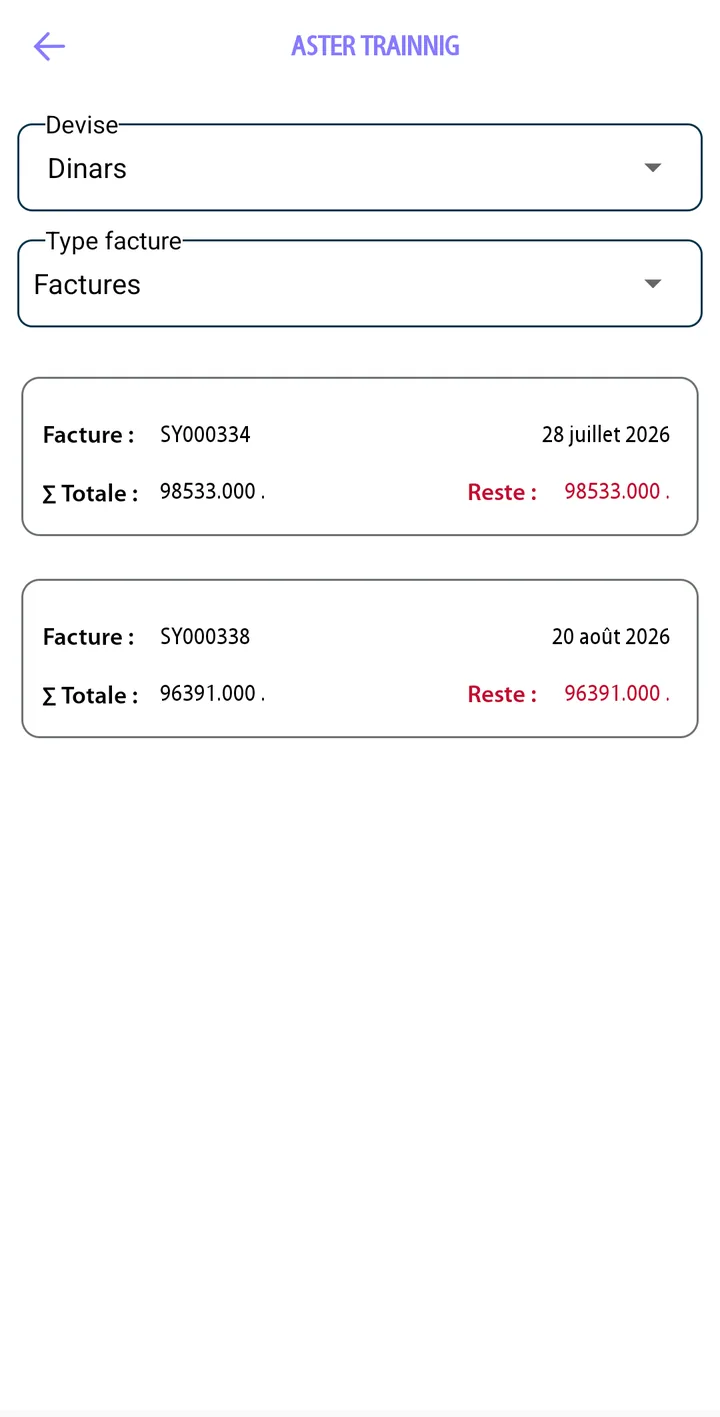
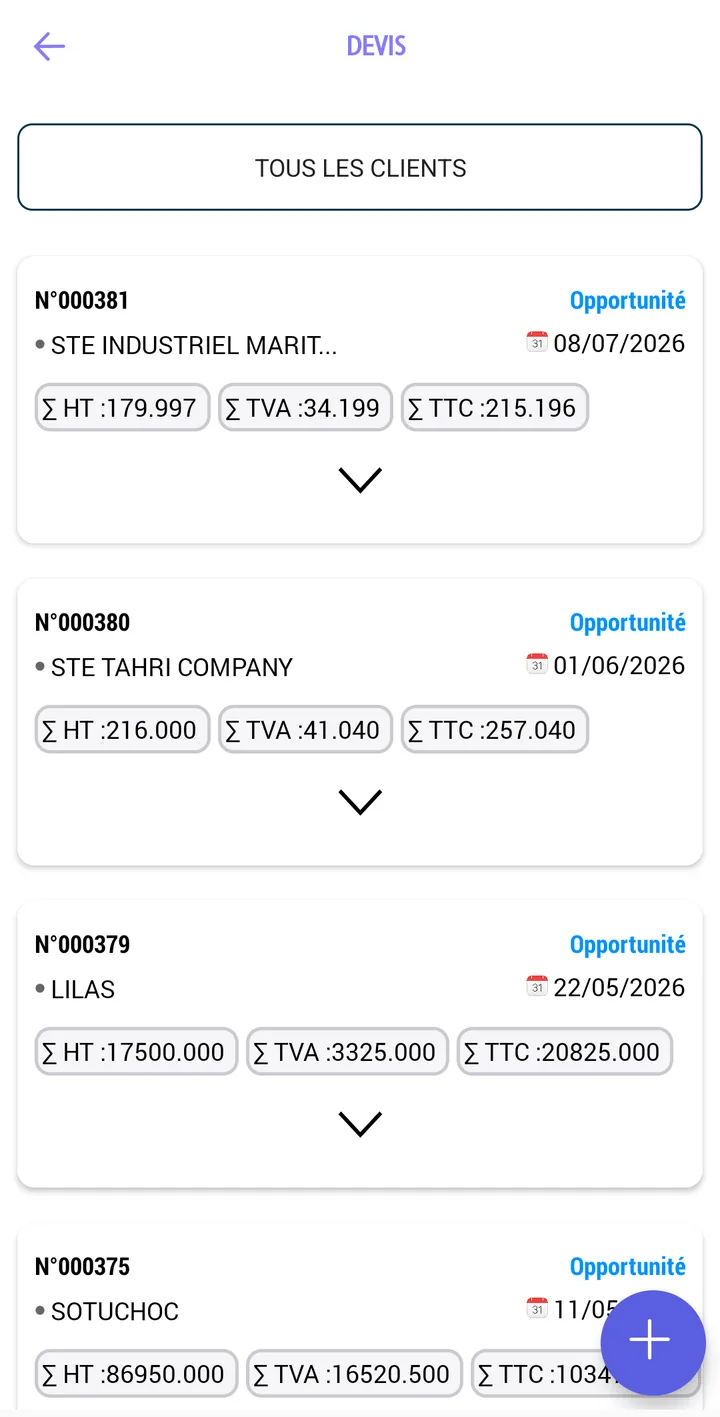
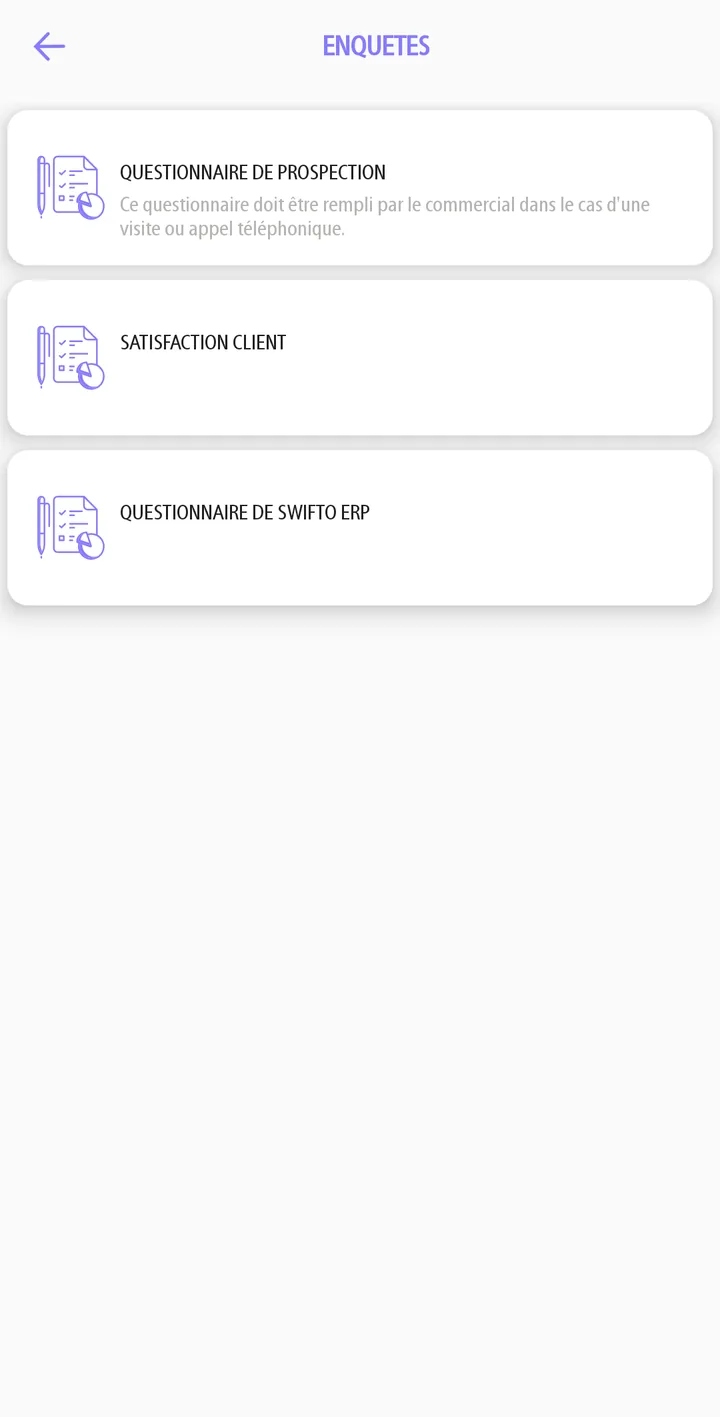
App for the sales rep / field rep: customer portfolio, visit scheduling, order taking and complaint tracking. On login, the app downloads the reference data (items, customers, price lists) then works in the field.

Key functions
Customers & visits — geolocated portfolio, visit check-in, inactive / unvisited customers.
Orders — order taking at the customer's site, customer-specific pricing, promotions and taxes applied.
Complaints — field entry, workflow tracking, reporting back to the back office.
GPS tracking — sales rep position reported for route tracking.
Screenshots
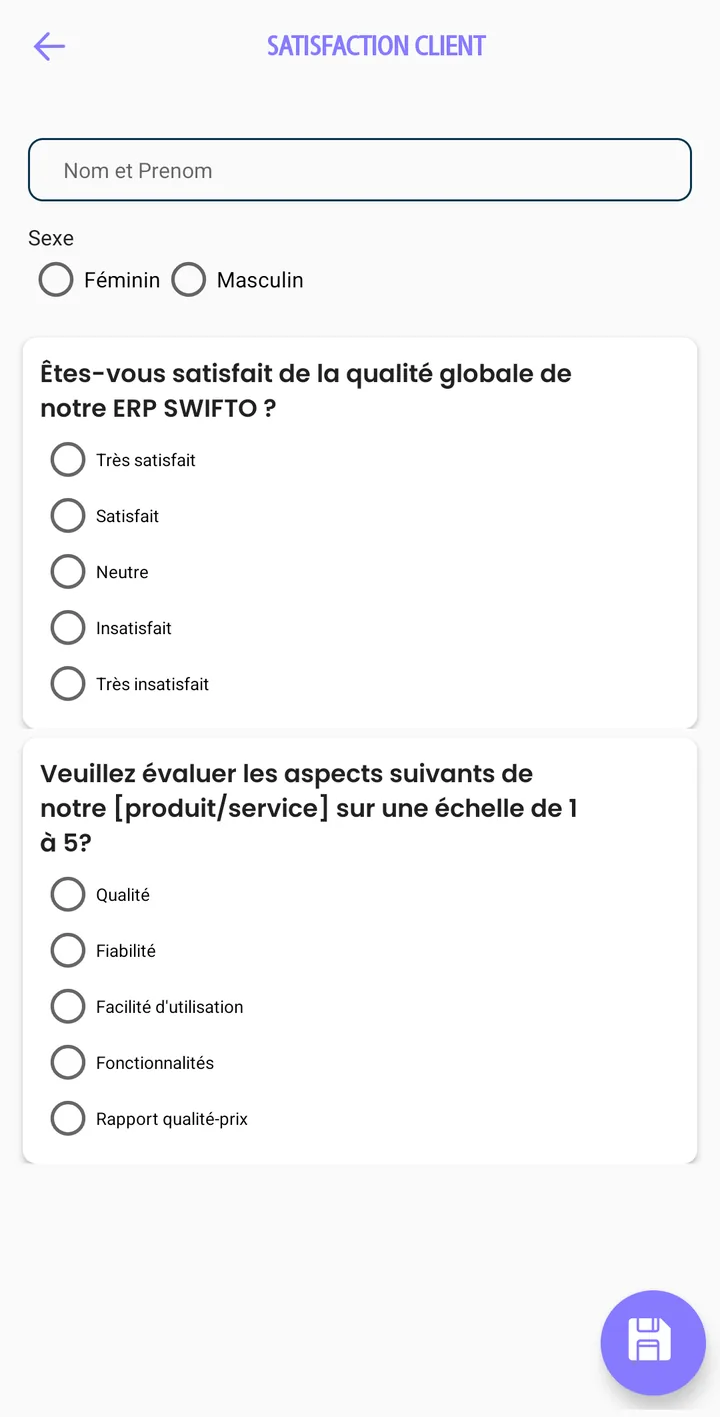
Swifto Seller
App for van sales (field seller / truck seller): loading the vehicle's stock, direct sales, payment collection and return notes. The onboard stock is tracked in real time and the seller closes out the day with a report.
Full detail on this workflow in the Van sales manual (loading, sales, return notes, route report).
Swifto POS
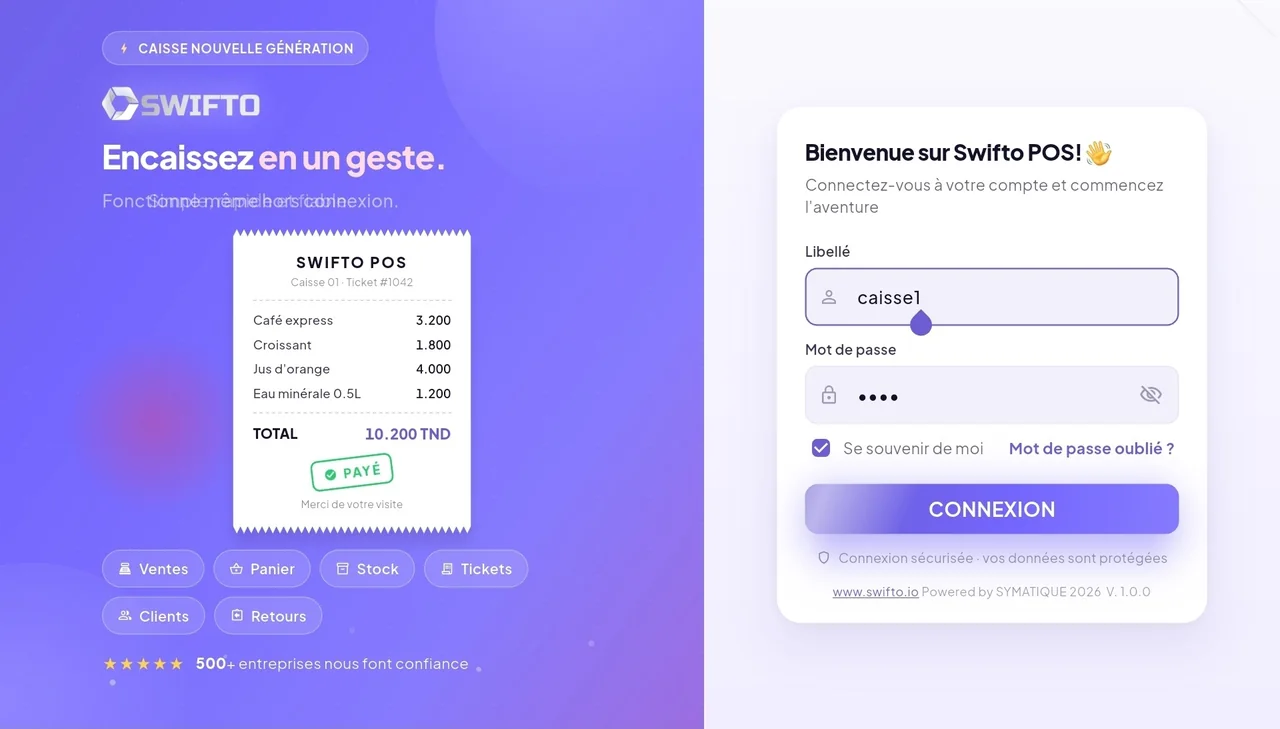
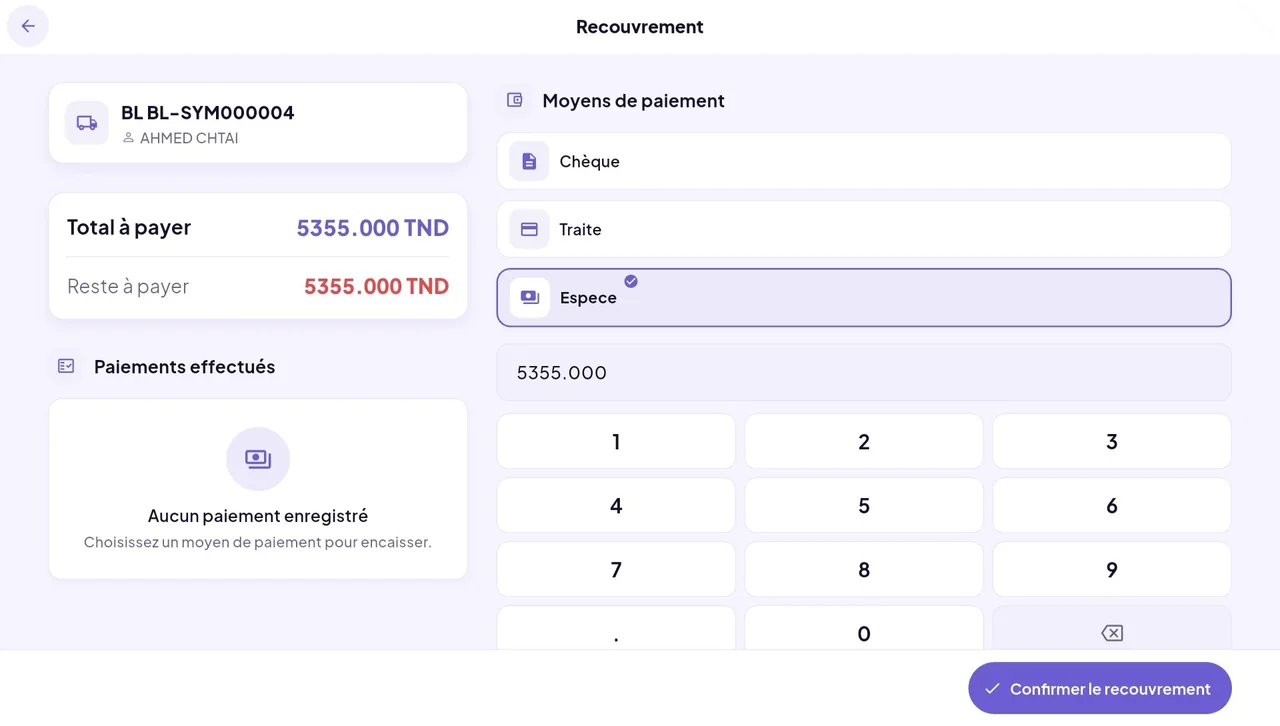
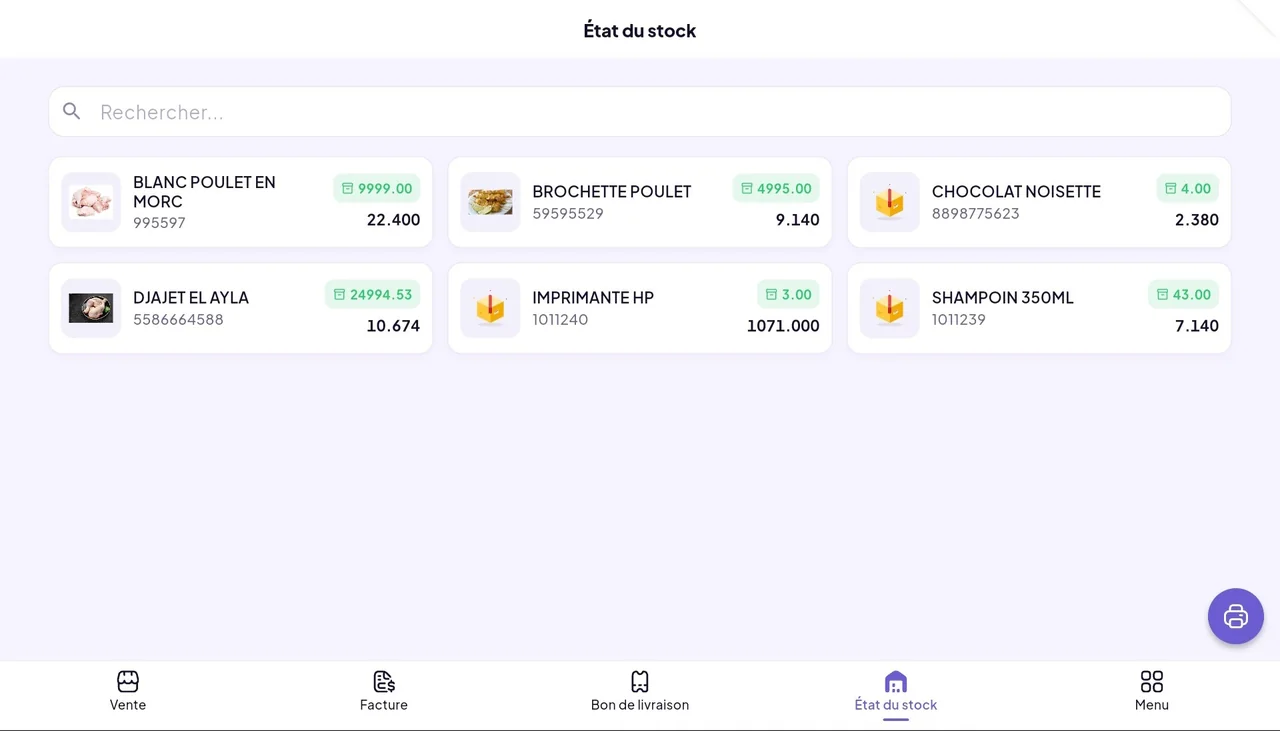
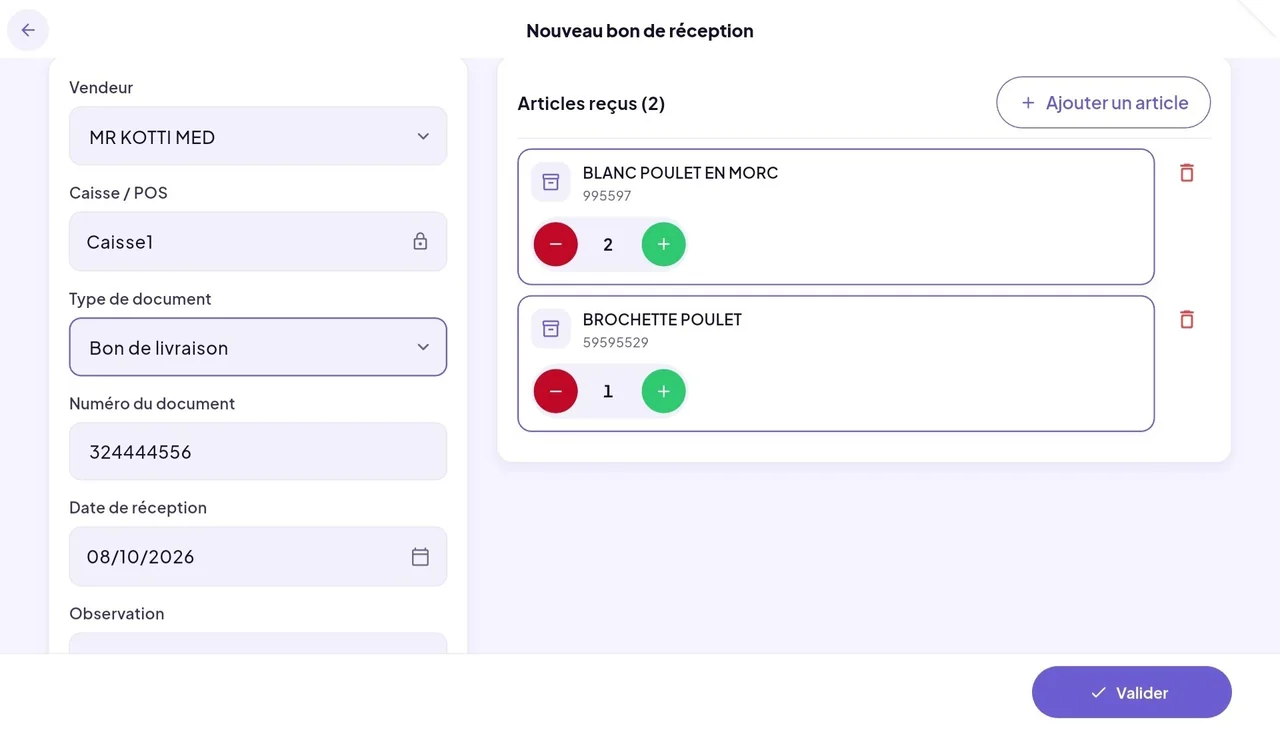
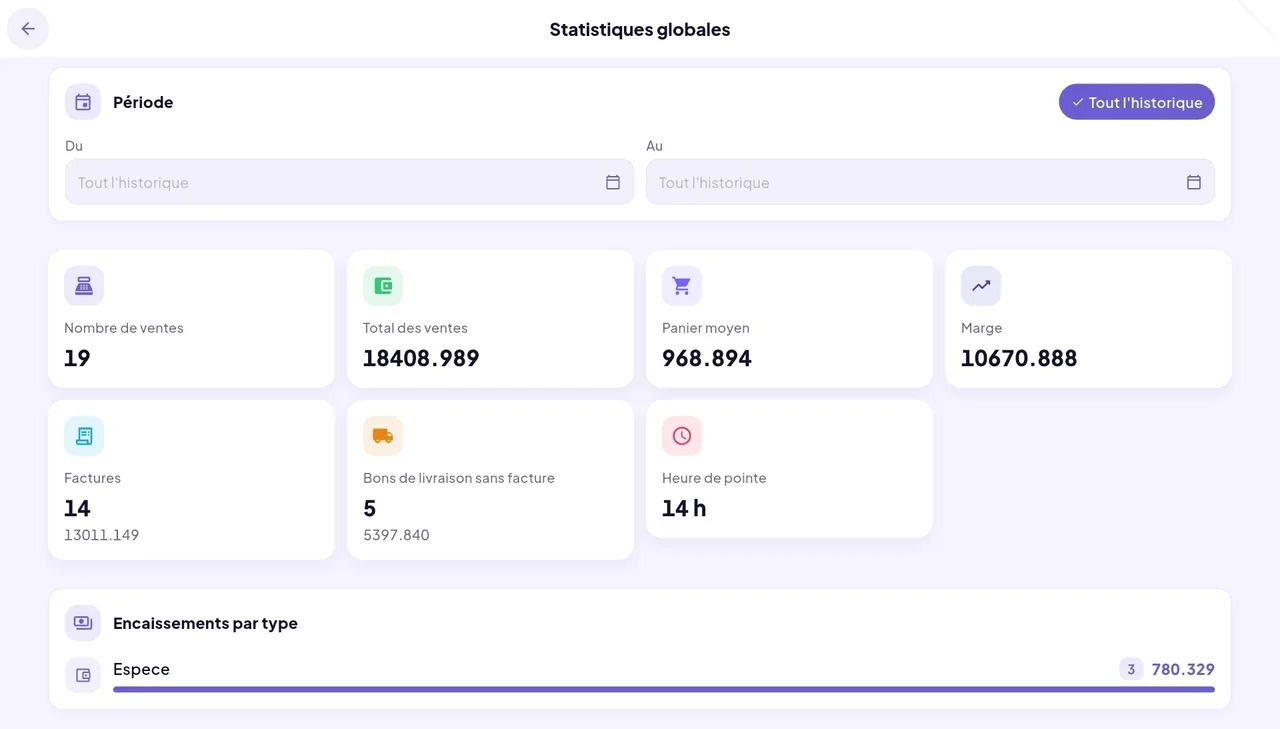
Register app for tablet (landscape mode) or touchscreen: point-of-sale payment collection, authenticated by the register label and its password. Generates invoices and delivery notes, manages return notes and exports sales to the back office.
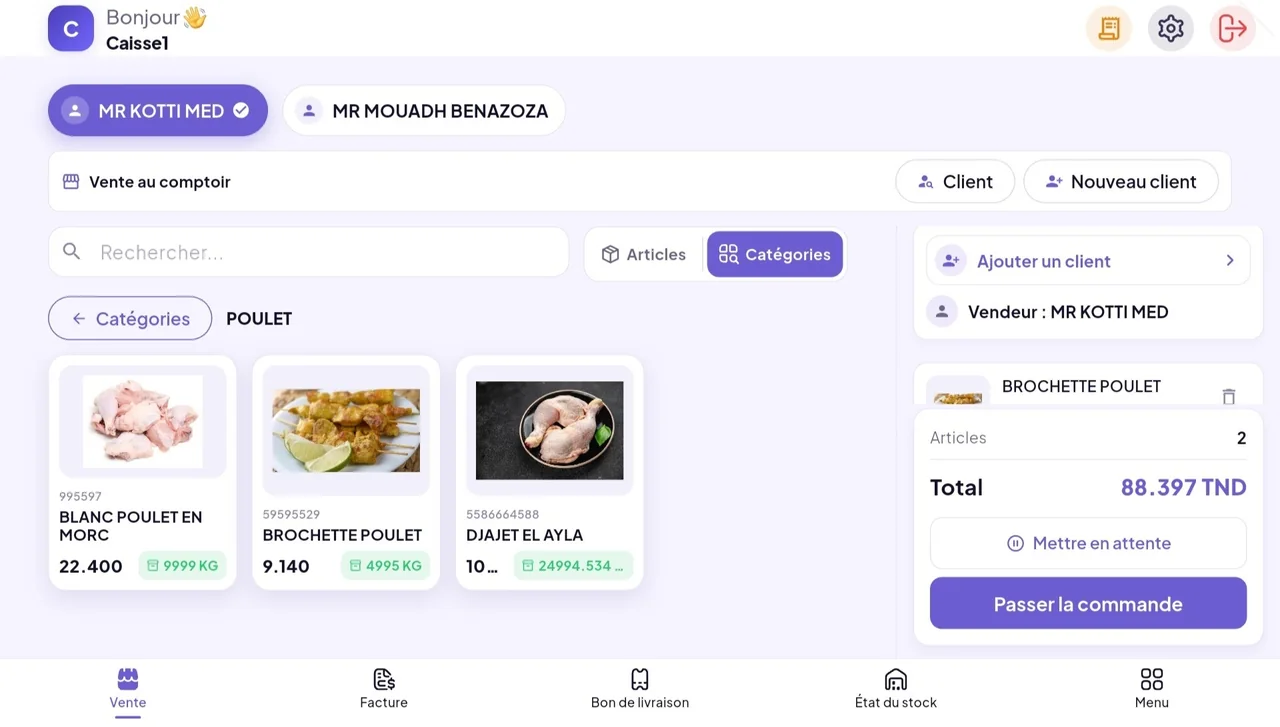
What Swifto POS does
Login with label and password — each register has its own label and password; the cashier opens their session.
Invoices & delivery notes — issues and exports invoices and delivery notes (cash, card, cheque…).
Return notes — manages customer returns with a reason.
Stocktake — stocktake entry for the register stock.
See also the Registers manual on the back-office side.
Screenshots
Swifto IA
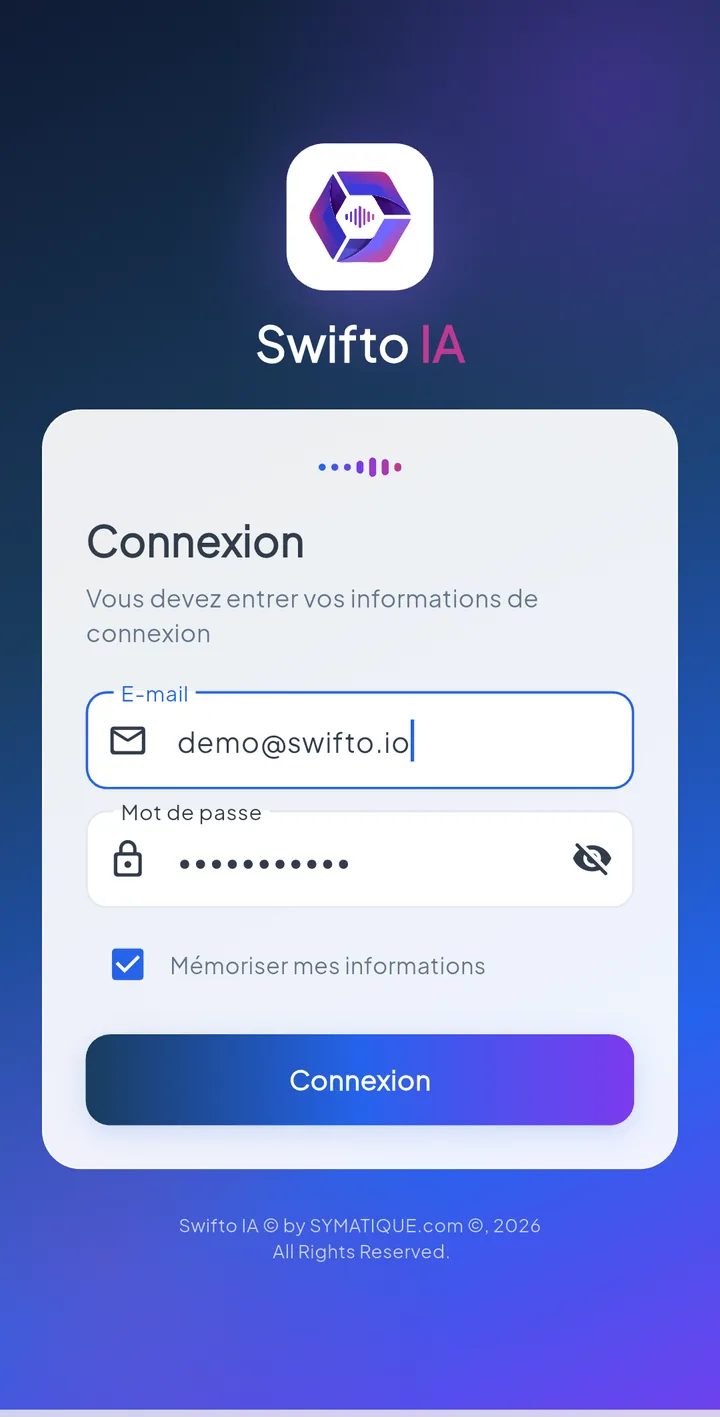
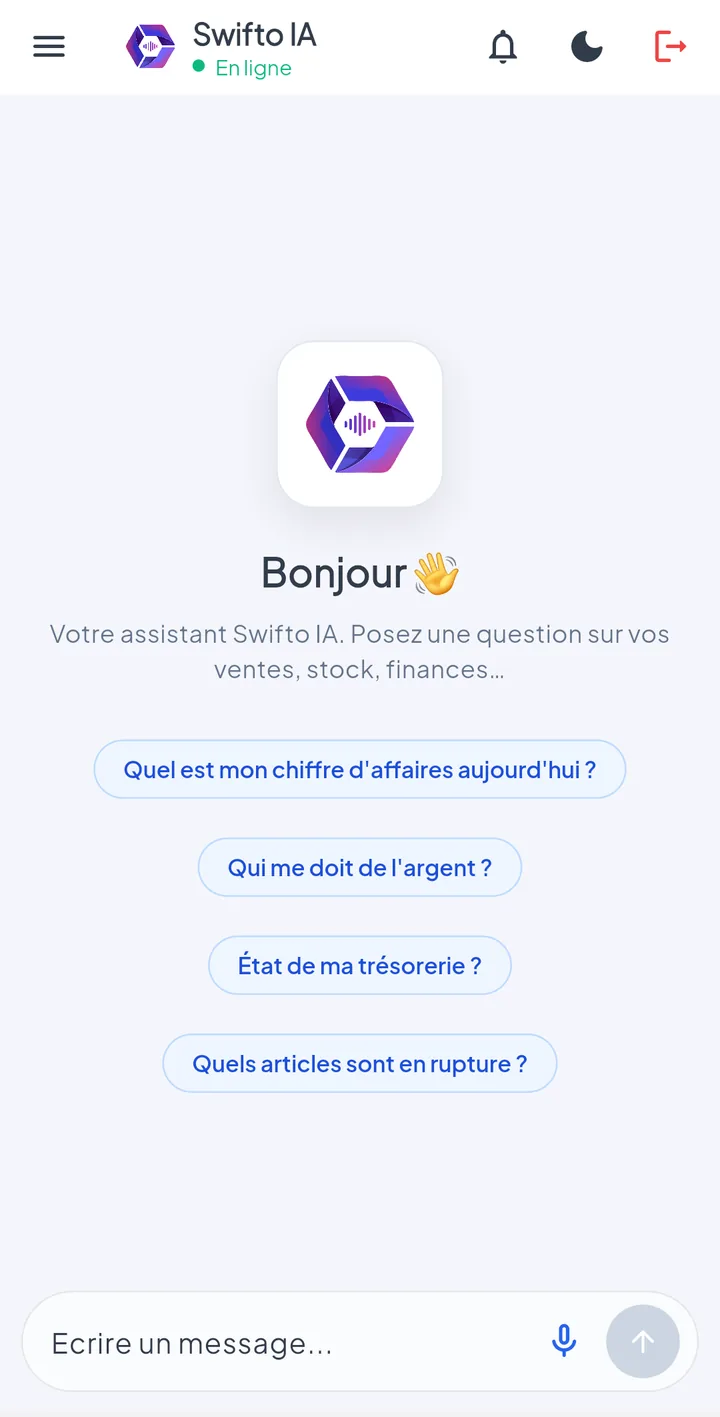
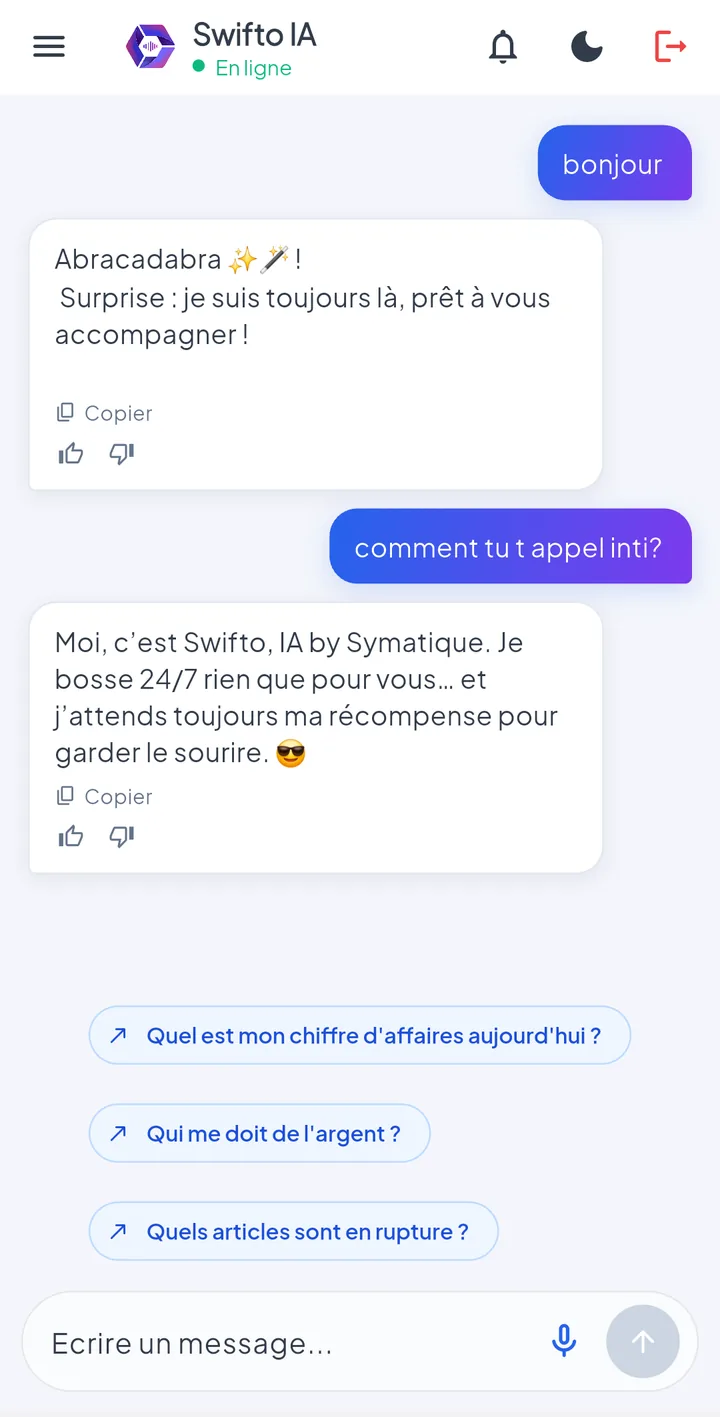
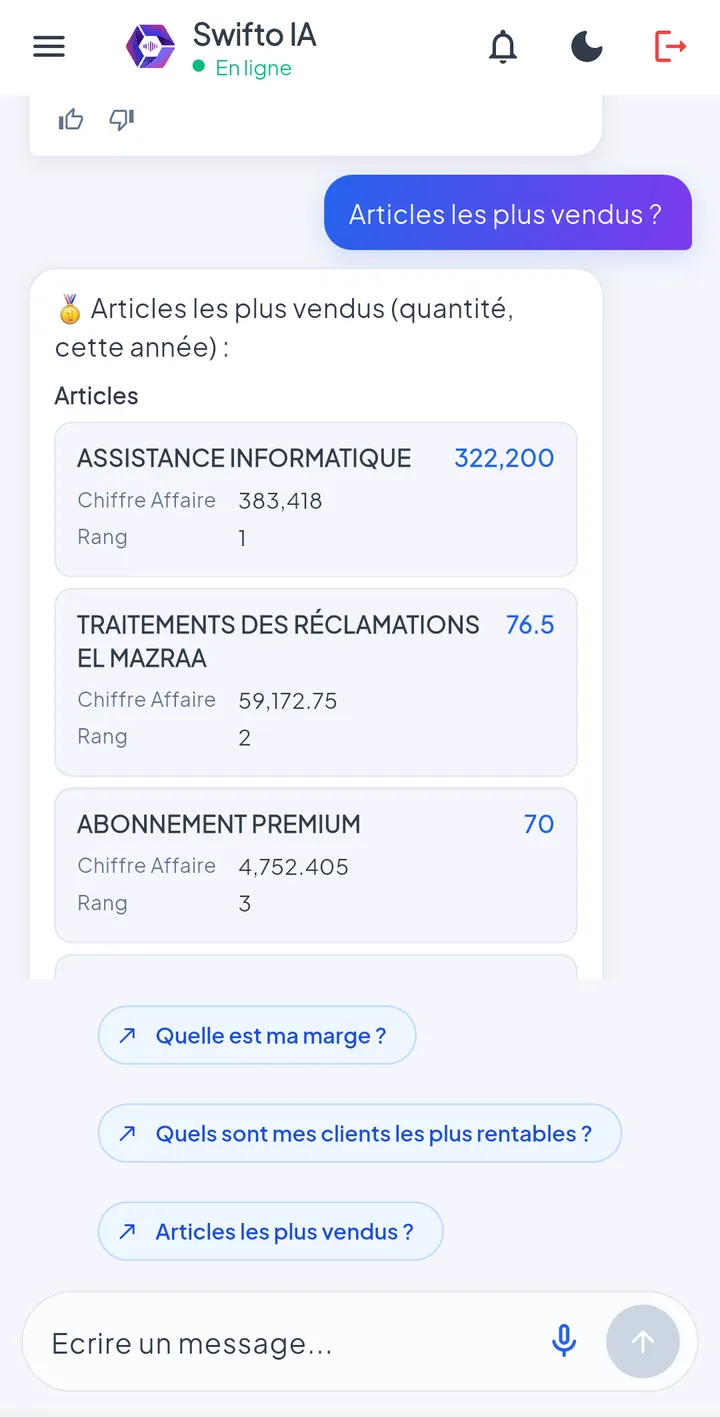
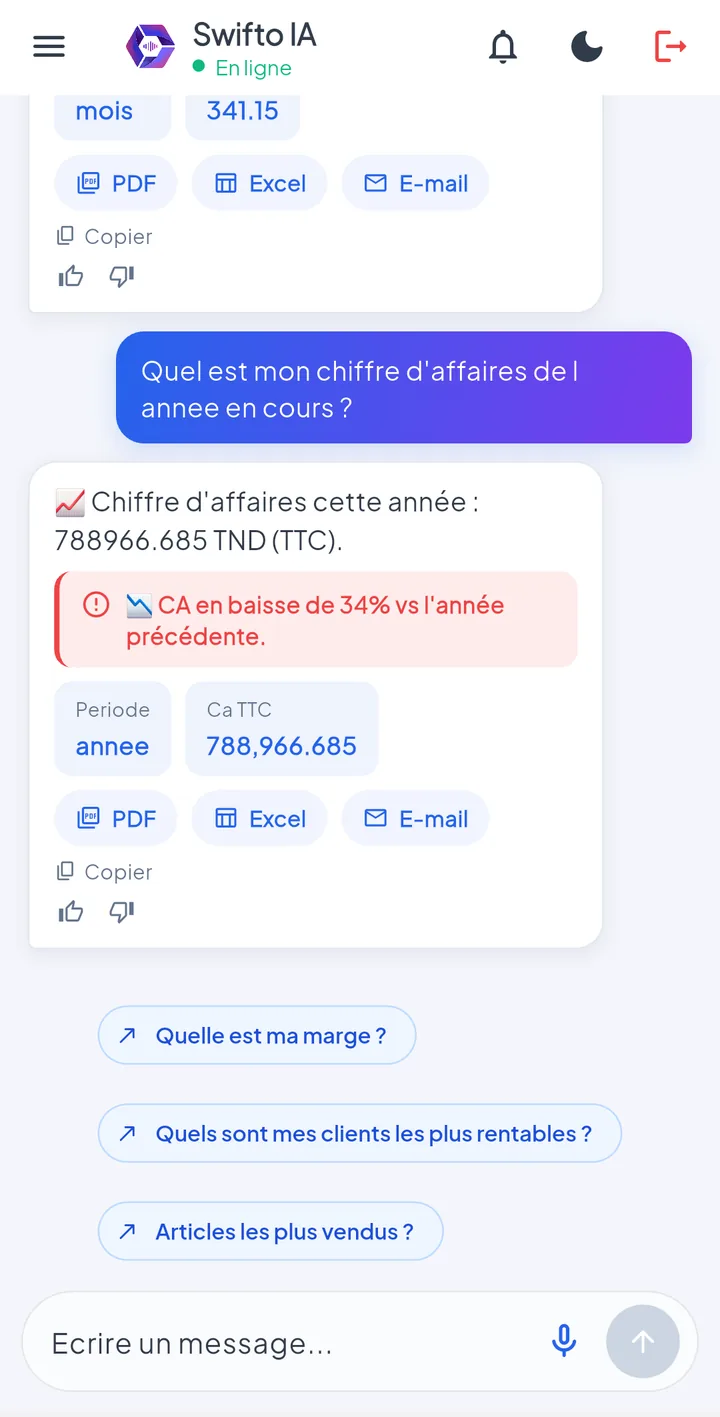
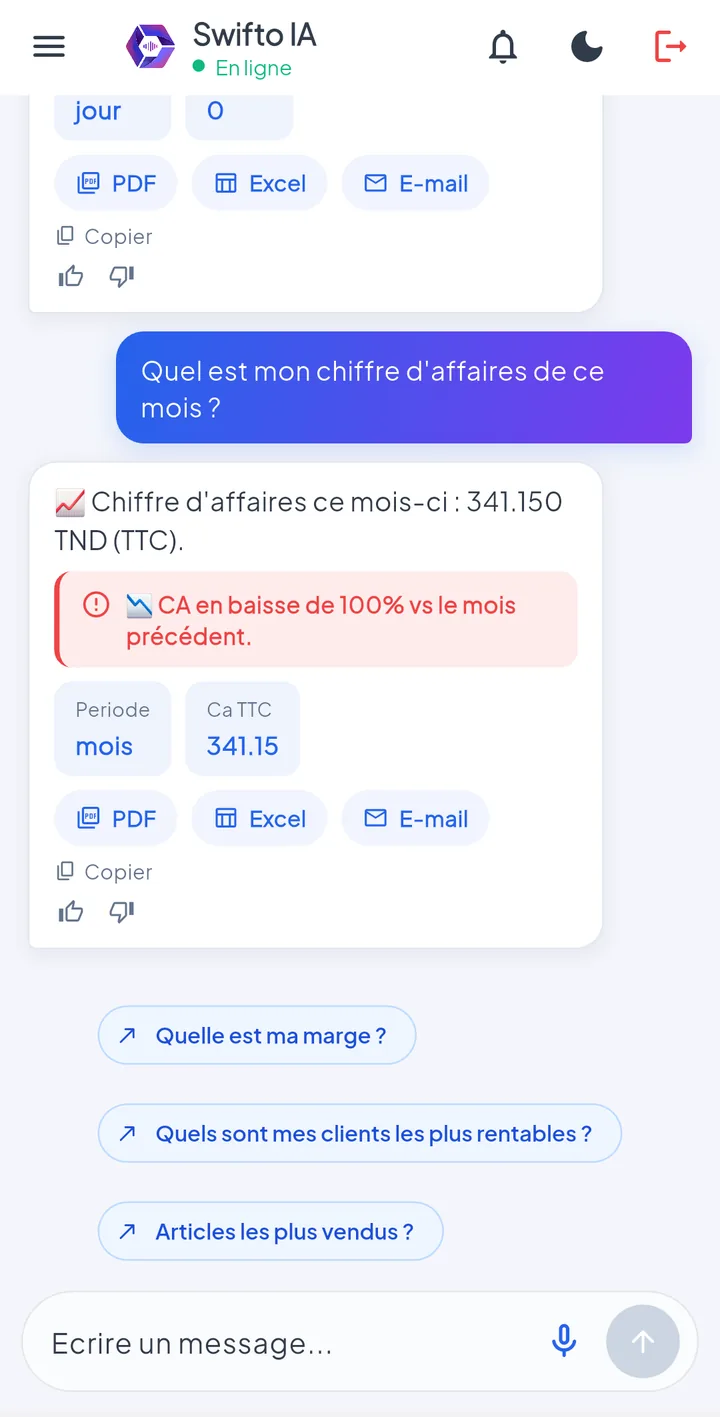
Conversational assistant app: ask your business questions in natural language — "what's the month's revenue?", "who owes me money?", "which items are out of stock?" — and get your company's real figures in seconds, in French, English, Arabic or Arabizi.
Natural conversation — 76 question types covering sales, stock, finance, purchasing, HR, CRM, fleet and registers.
Insights & alerts — automatic banners (aging unpaid invoices, revenue drop), proactive alerts screen 🔔.
Exports — every result can be exported to PDF or Excel, with email sending.
Native security — strictly read-only, same profiles and privileges as the ERP, data processed on-premises.
Unlike the three data-entry apps, Swifto IA queries data live (connection required) and never modifies anything. Full guide: Swifto IA module.
Screenshots
Synchronization
Synchronization is the heart of the system. It works in both directions and allows working offline: entries are stored on the phone, then sent as soon as the connection returns.
Downstream direction (back office → mobile)
The app downloads reference data on login and at each sync:
- Items, categories, price lists & promotions
- Customers, points of sale, sales reps
- Taxes, currencies, payment terms
- Stock (truck / register / warehouse)
- News, events, FAQ
Upstream direction (mobile → back office)
The app sends back field entries:
- Orders & delivery notes
- Payments & advances
- Return notes
- Stocktakes
- Complaints, suggestions, GPS tracking
Online vs Offline
Online mode (real-time)
Stable connection: every entry is sent immediately, reference data is up to date, notifications arrive live.
Offline mode
No network: entry continues, stored locally. When the network returns, the app pushes everything in a batched upstream sync.
Date-based incremental sync
Synchronizations use a last sync date: only data modified since then is exchanged — saving network and battery.
Notifications
The back office keeps field teams informed through two complementary channels.
WebSocket (real-time)
When the app is open and connected, a WebSocket channel pushes instant updates (new order approved, status updated, message). Immediate notification, no refresh needed.
Firebase Push (FCM)
Even with the app closed, the phone receives a push notification via Firebase. The phone's token is registered at pairing to target the right device.
Notification — Swifto CRM
Order approved
Your order PO No. 000218 for STÉ FONDS CLAIR has been approved by the back office.
2 min ago
A failed push send is never blocking: the business operation (creation / edit) still goes through even if the notification doesn't get sent.
Field workflow
Full cycle between the back office, the synchronization layer and the field mobile apps.
flowchart LR
  BO[(Back-office ERP)]:::bo
  BO -->|items · customers · price lists · stock| SY{{Synchronization}}:::sy
  SY -->|downstream| APP[Mobile apps
CRM · Seller · POS]:::app
  APP -->|online / offline entry| Q[/Local offline queue/]:::st
  Q -->|upstream: orders · delivery notes · payments · returns · stocktakes| SY
  SY --> BO
  BO -.->|WebSocket / Firebase| APP
  classDef bo fill:#f3f1ff,stroke:#7366fe,color:#1f1c3d;
  classDef sy fill:#F5F3FF,stroke:#8B5CF6,color:#5B21B6;
  classDef app fill:#D1FAE5,stroke:#10B981,color:#065F46;
classDef st fill:#FEF3C7,stroke:#F59E0B,color:#92400E;FAQ & Tips
First login — how do I get started?
Enter your back-office credentials (login + password) and choose your company. On the first successful authentication, the device is paired and an initial downstream sync downloads your reference data.
"Device not recognized" on login?
The app is tied to a unique phone identifier. If you change devices, the administrator must re-pair your account on the back-office side.
Sync conflict — who wins?
Field entries (orders, payments, returns) are cumulative: they add to the back office, they never overwrite anything. Reference data (items, price lists), on the other hand, always comes from the back office and replaces the local copy on downstream sync.
Tip — sync before and after the route
Run a sync at the start of the day (up-to-date reference data) and one at the end of the route (full upload of sales) to avoid any data loss.
My sales for the day aren't showing up in the back office?
They're probably still in the offline queue on the phone. Check the connection and run an upstream sync; the "pending" counter should drop back to 0.