Manual Quotes & Proforma invoices
Complete usage guide for the Quote Management feature in the Sales module of Swifto ERP. This document covers the creation, editing, approval, rejection and tracking of sales quotes.
Module overview
The Quotes & Proforma invoices section is the central sales-management hub in Swifto ERP. It lets sales teams create, track and convert sales offers into purchase orders, while maintaining complete traceability of every version of the document.
Business goal
- Manage the full lifecycle of a quote
- Track every version of a commercial offer
- Quickly convert a quote into a purchase order
- Generate professional PDF / Excel documents
- Send quotes directly by email to the customer
Target audience
- Sales reps — Create and submit quotes
- Sales managers — Approve or reject
- Managers — Track performance indicators
- ERP administrators — Configure settings
Functional scope
This manual exclusively covers the management of Quotes and Proforma invoices. Final invoicing, purchase orders and deliveries are documented in dedicated manuals.
Access and navigation
To access the Quotes & Proforma invoices section, follow the steps below from the Swifto ERP main page.
Authentication
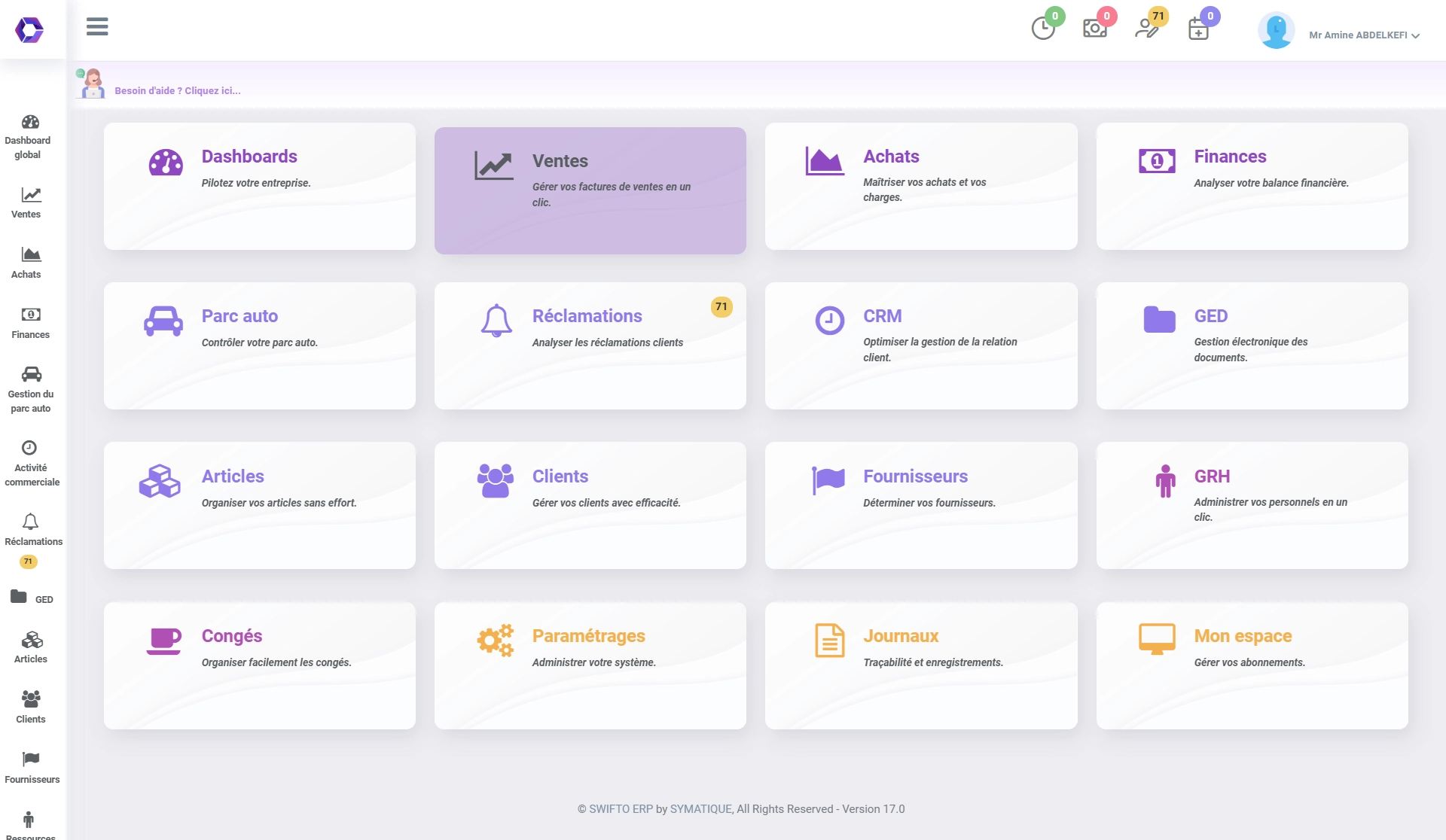
Log in with your credentials on the Swifto ERP login page. You will be redirected to the main page showing all active modules.
Access the Sales module
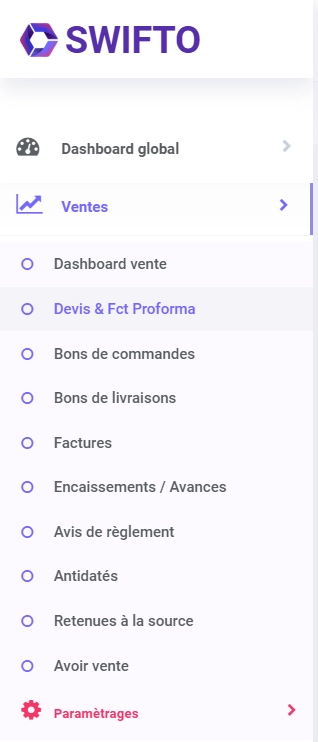
On the main page, click the Sales card or use the left-hand side menu to expand the Sales section.
Click "Quotes & Proforma invoices"
In the Sales module submenu (left-hand side menu), click the Quotes & Proforma Invoices link.
Quick shortcut
The left-hand side menu is accessible from any page in the ERP. No need to return to the main dashboard to switch sections.
List of quotes
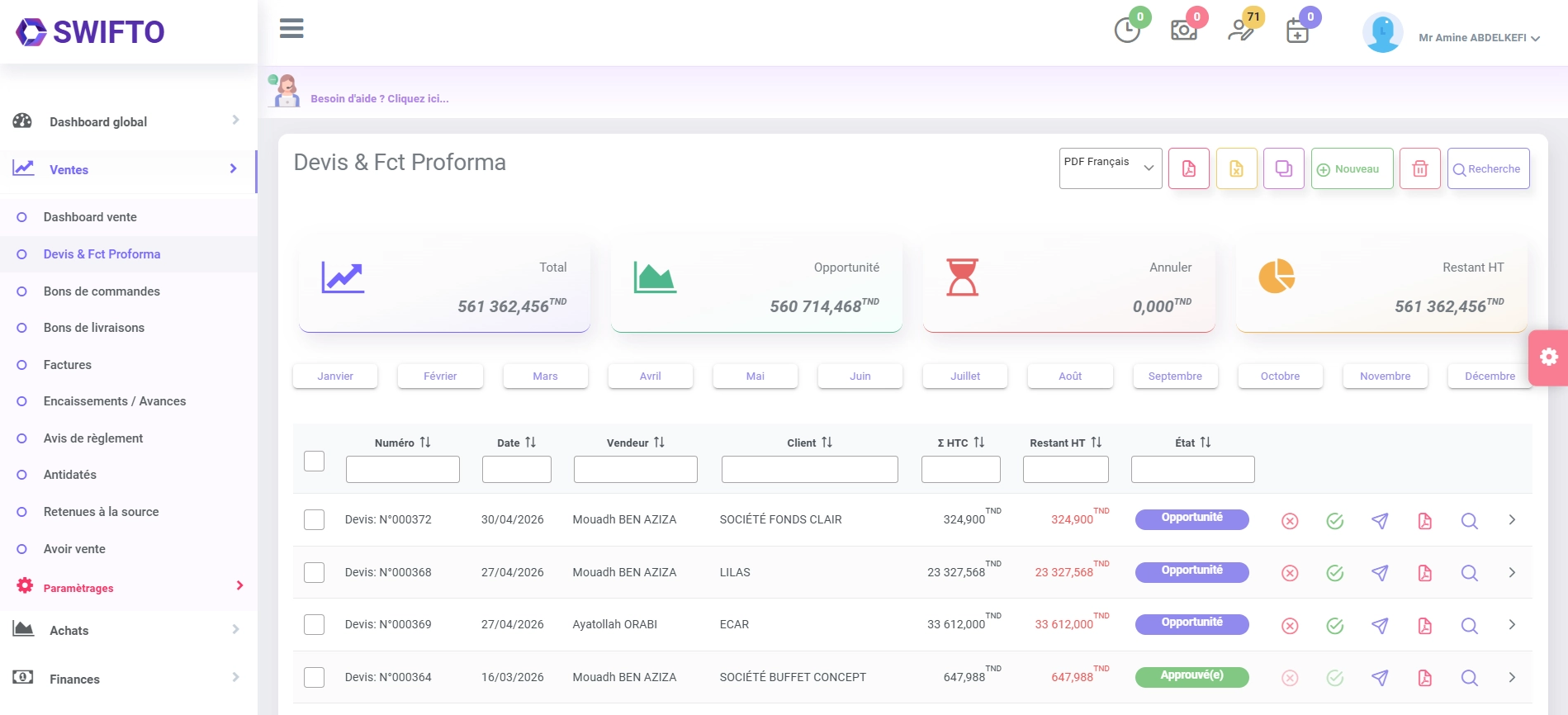
The main page shows the list of active quotes. By default, the following are visible: quotes in Draft and Opportunity status (regardless of the remaining amount to invoice), as well as Approved quotes whose remaining to invoice is greater than zero. The Rejected and Edited statuses are hidden. The page also includes a totals banner (Σ Excl. VAT, Opportunity, rejected amount, Remaining to invoice) and a month filter bar (January to December).
| Number | Date | Salesperson | Customer | Σ Excl. VAT | Remaining to invoice | Status | Action(s) | |
|---|---|---|---|---|---|---|---|---|
| Quote: DEV000123 | 12/01/2024 | Ben Salah Karim | Société Alpha SARL | 15,400.000 TND | 15,400.000 TND | Opportunity |
|
|
| Proforma Inv.: DEV000124 | 15/01/2024 | Trabelsi Sonia | TechPro Solutions | 8,200.000 TND | 8,200.000 TND | Draft |
|
|
| Quote: DEV000125 | 18/01/2024 | Ben Salah Karim | Groupe Medina | 32,750.000 TND | 0.000 TND | Approved |
|
Table columns
| Column | Description | Notes |
|---|---|---|
| ☐ Selection | Checkbox to select one or more quotes | Required for Duplicate or Delete |
| Number | Document reference, prefixed by its type: Quote: … or Proforma Inv.: … | E.g., Quote: DEV000123 |
| Date | Quote creation date | Default: today's date |
| Salesperson | Sales rep / salesperson attached to the quote | First and last name |
| Customer | Name of the customer associated with the quote | Customer name |
| Σ Excl. VAT | Total excl. VAT (all lines combined) of the quote | Preceded by the currency symbol |
| Remaining to invoice | Amount of the quote not yet invoiced | Shown in red as long as it is > 0 |
| Status | Current status of the quote (colored badge) | See section 12 for the full list |
| Actions | Quick action buttons for each row | See section 5 for details |
Default filtering
The list shows Draft and Opportunity quotes (with no condition on the remaining amount to invoice), plus Approved quotes whose remaining to invoice > 0. The Rejected and Edited statuses are hidden. Use Search to view them.
Global actions bar
The toolbar at the top of the list groups the global actions, aligned to the right of the Quotes & Proforma Inv. title. In actual order: a PDF language selector (French / English), then the PDF, Excel, Duplicate, New, Delete and Search buttons. Only New and Search show a text label; the others are icon-only buttons.
PDF language selector
Before generating a PDF, a drop-down list lets you choose the document's language: French PDF or English PDF. The choice applies to the PDF exports in the toolbar.
Generates a PDF file consolidating all the quotes currently displayed in the list (based on the current filter), in the language chosen via the selector. Useful for sales summary reports.
Excel
Icon button · Displayed listExports all displayed quotes to Excel format (.xlsx). Handy for custom analysis, pivot tables or tracking in an external spreadsheet.
Duplicate
Icon button · Selection requiredCreates a copy of the selected quote. The new quote receives a distinct number. Check the row before clicking.
New
Icon + label · Main actionOpens the form for creating a new quote. See Section 6 for the full creation workflow.
Delete
Icon button · Irreversible · Selection requiredPermanently deletes the checked quote(s). A confirmation window "Confirm deletion" opens before it runs. Irreversible action. Check the row before clicking.
Search
Icon + label · Filter popupOpens a filter popup window: Number, Status (including Rejected and Edited, hidden by default), Customer, Currency, Domain (if the company is multi-domain) and a period (Start date / End date).
Search
Actions per quote row
Each row in the table has 5 quick-action buttons (round buttons), displayed in this order: Reject, Approve, Send by email, PDF and Details. Some are enabled/disabled depending on the quote's status.
Reject the quote
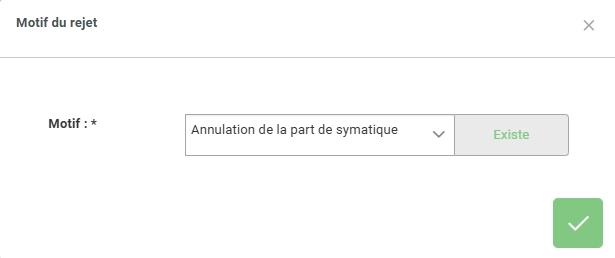
Active if status = OpportunityRound red button (times-circle icon). Active only when the quote's status is Opportunity (disabled otherwise). Opens the "Rejection reason" window, letting you choose an existing reason or enter a new one. The quote then moves to Rejected status and disappears from the default list.
Rejection reason
Approve the quote
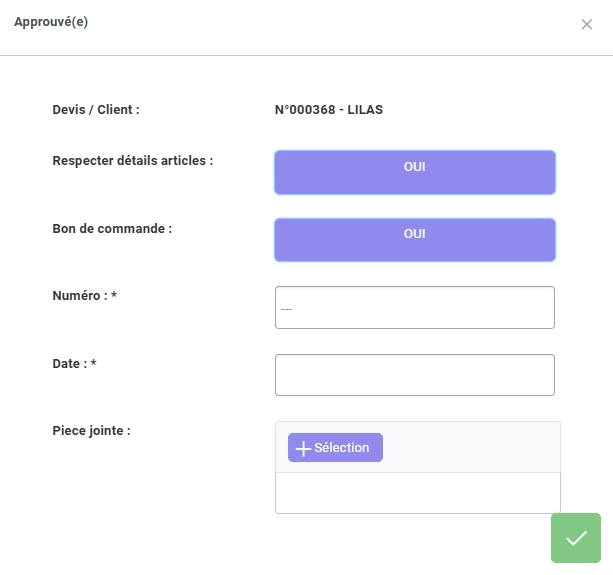
Active if status = OpportunityRound green button (check-circle icon). Active only when the quote's status is Opportunity (disabled otherwise). Opens the approval window and optionally offers to generate a Purchase Order. See Section 9 for the full workflow.
Send by email
Disabled if Draft, Edited or RejectedRound blue button (send / paper-plane icon). Disabled when the status is Draft (0), Edited (2) or Rejected (3); active for the Opportunity (1) and Approved (4) statuses. Opens the "Email address" window to enter recipients, subject and message before sending the quote (PDF attached).
Email address
Quote PDF
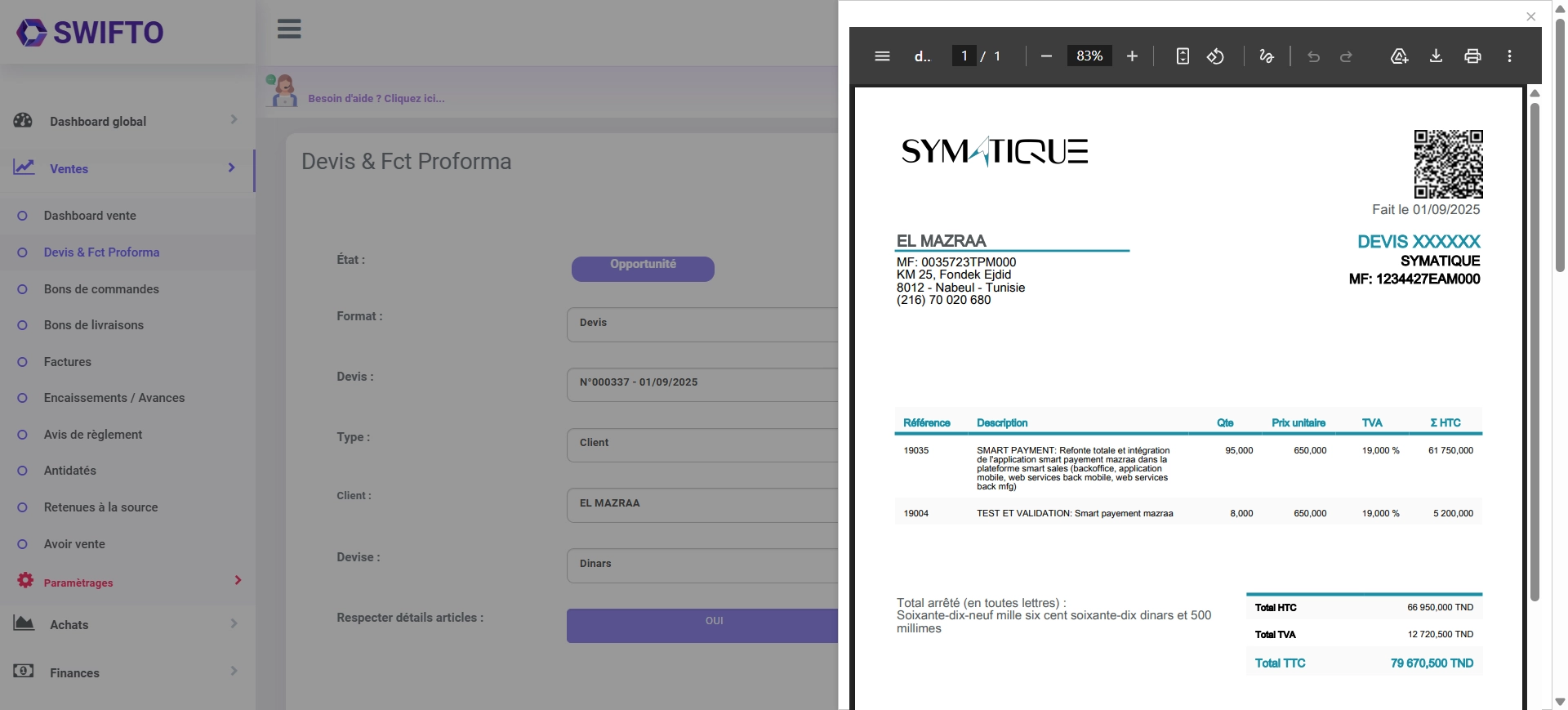
Direct generationRound grey button (file-pdf icon). Generates the individual PDF of the quote concerned, in the language chosen via the toolbar selector. The document includes the lines, taxes, sales terms and additional information. The button may be disabled depending on the document's status.
Quote details
Read-only · All statusesRound blue button (search icon). Opens the quote's full page showing all information: lines (item, quantity, discount, unit price, unit price after discount, VAT, total excl. VAT), totals, taxes, sales terms and additional information. It is also the entry point for editing a quote (subject to the status rules). Available for all statuses.
Create a new quote
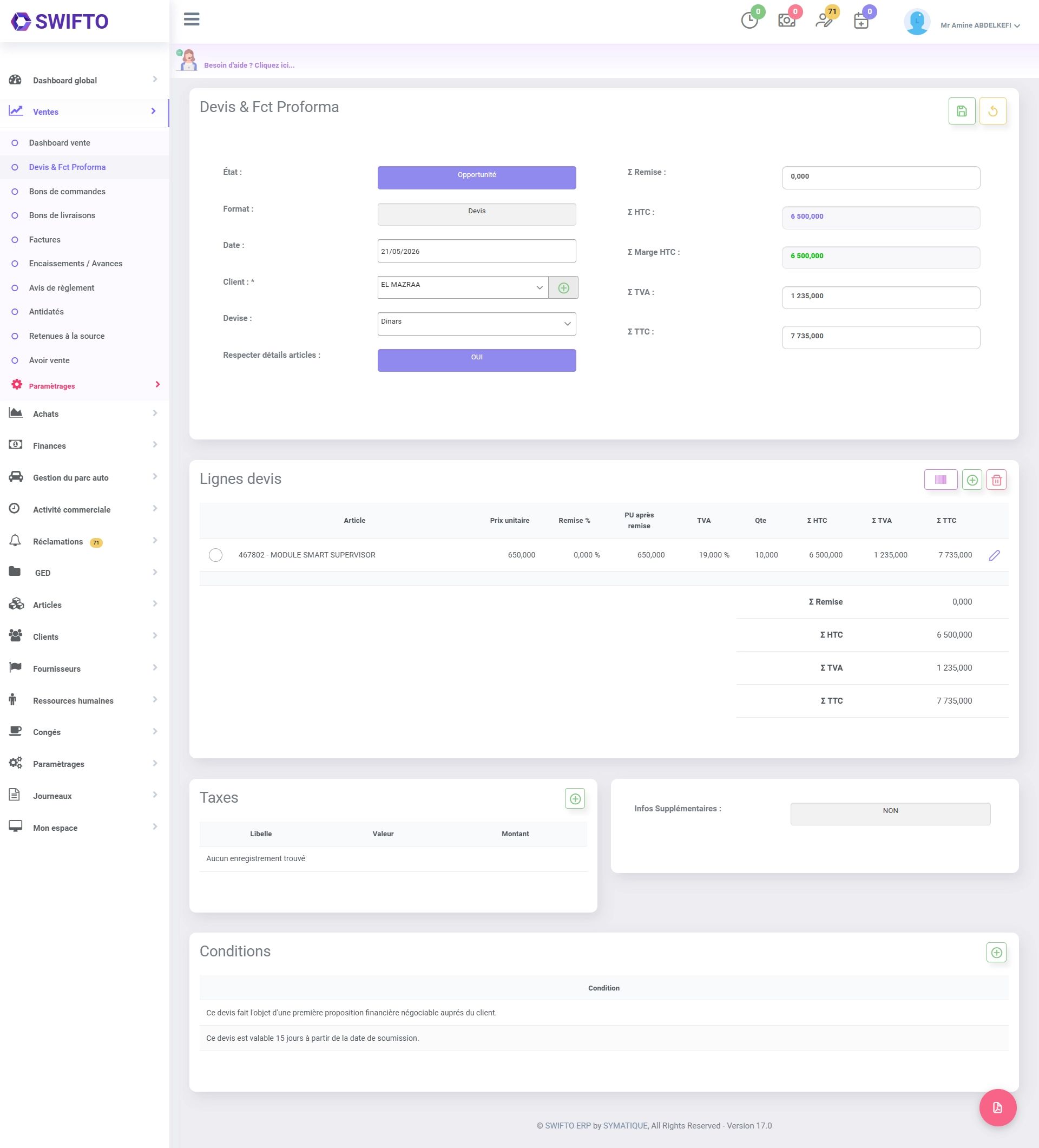
Click the New button to open the creation form. The process takes place in several steps.
| Article | Unit price | Discount | UP after discount | VAT | Qty | Σ Excl. VAT | |
|---|---|---|---|---|---|---|---|
| Swifto ERP Pro License — 12 months | 1,200.000 | 10% | 1,080.000 | 19% | 5 | 5,400.000 | |
| User training (per day) | 800.000 | 0% | 800.000 | 19% | 2 | 1,600.000 |
Popup — Add an item
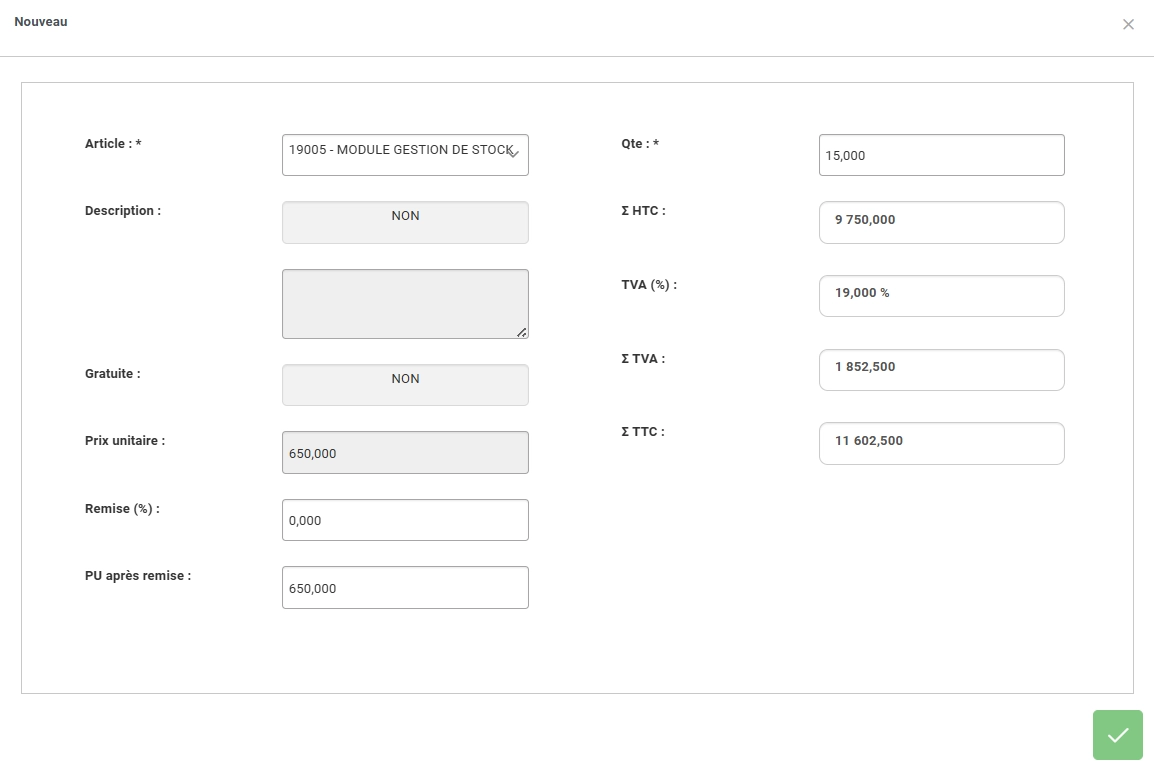
When you click Add in the Quote lines section, a popup window opens to enter the line details. A second button, Bar code, lets you add an item by scanning its barcode.
New
Popup — New customer
The New button next to the Customer field opens a quick customer-creation window, without leaving the quote. Fields: Code *, Name *, Category, Type *, Nature *, Tax ID, Trade register and National ID (CIN).
Main form fields
| Field | Type | Required | Description |
|---|---|---|---|
| Status | Toggle button | Yes | Choice between Draft and Opportunity |
| Format | Toggle button | Yes | Quote: standard sales document. Proforma Invoice: preliminary document with no accounting value |
| Date | Date picker | No | Default: today's date. Can be changed manually |
| Domain | Drop-down list | Conditional | Shown only if the company is multi-domain |
| Customer | Autocomplete field + New button | Yes | Search by code or name, or quickly create a new customer (popup) |
| Currency | Drop-down list | No | Currency of the quote. Affects all calculations |
| Keep item details | Toggle button (YES / NO) | No | Controls whether the item-level detail is carried over during conversion |
| Sales cycle | Drop-down list | No | Optional link to a sales cycle |
| Quote lines | Dynamic table | Yes | At least one item line is required. Added via popup or barcode |
| Taxes | Dynamic table | No | Additional taxes applicable to the quote (e.g., stamp duty) |
| Terms | Dynamic table | No | Sales terms included in the PDF document |
| Additional information | Text field | No | Free-form note shown in the quote's PDF |
Full creation workflow
Quote details
The details page shows all of the quote's information. It is accessible via the Details button on each row.
| Article | Unit price | Discount | UP after discount | VAT | Qty | Σ Excl. VAT |
|---|---|---|---|---|---|---|
| Swifto ERP Pro License | 1,200.000 | 10% | 1,080.000 | 19% | 5 | 5,400.000 |
| User training | 800.000 | 0% | 800.000 | 19% | 2 | 1,600.000 |
| Annual maintenance | 3,600.000 | 5% | 3,420.000 | 19% | 1 | 3,420.000 |
Information shown on the details page
- Quote reference and number
- Customer (name, contact details)
- Status, document format and domain
- Currency and sales cycle
- Lines: item, unit price, discount, unit price after discount, VAT, Qty, Σ Excl. VAT
- Taxes applied (VAT, specific taxes)
- Σ Discount, Σ Excl. VAT, Σ Margin Excl. VAT, Σ VAT, Σ Incl. VAT
- Remaining to invoice
- Sales terms
- Notes and additional information
Edit a quote
Critical rule — Editing restriction
Editing a quote is allowed only if both of the following conditions are met at the same time:
- The quote's status is Opportunity
- The remaining to invoice = the quote's total amount (no partial invoicing has taken place)
Behavior when an edit changes the amount
When an Opportunity quote is edited and its total amount changes, Swifto ERP automatically applies the following versioning procedure:
Original quote. Amount: 8,000 TND. Editable status.
Old quote kept for traceability
New quote with an incremented prefix
Automatic traceability
The old quote with Edited status remains viewable via Advanced search. It lets you retrieve the complete history of every version of a commercial offer.
Restrictions table by status
| Quote status | Editing allowed? | Additional condition |
|---|---|---|
| Draft | ✗ No | — |
| Opportunity | ✓ Yes (conditional) | Remaining to invoice = Total amount |
| Approved | ✗ No | — |
| Rejected | ✗ No | — |
| Edited | ✗ No (archived) | — |
* Editing is allowed only if the remaining to invoice (the "Remaining to invoice" field) equals the quote's total amount. The Draft (0) and Opportunity (1) statuses are always visible; Approved (4) only appears if the remaining to invoice is greater than 0.
Approve a quote
Approving a quote is the key sales action that validates the offer. It can also trigger conversion into a Purchase Order.
Approval popup
Approved
Effects of approval
- → The quote moves to Approved status
- → The offer is validated commercially
- → Invoicing can be initiated
- → The quote can no longer be edited
- → The quote moves to Approved status
- → A Purchase Order is automatically created
- → The PO carries over the quote's lines and amounts
- → The delivery process can begin
Irreversible action
Once approved, a quote can no longer be edited. If adjustments are needed after approval, you will need to create a new quote or manage amendments.
Reject a quote
Rejecting a quote records the negative sales decision along with its documented reason. The quote is kept in the system for traceability but disappears from the default view.
Rejection process
Common rejection reasons
Rejected quotes remain viewable via Advanced search by selecting the "Rejected" status.
Duplicate and delete a quote
Mandatory prerequisite
To duplicate or delete a quote, you must first check the box of the corresponding row in the table before clicking the desired action button.
Duplicate a quote
- Reuse a standard offer for another customer
- Create a variant of an existing offer
- Prepare a similar quote for a new period
- ✓ New unique quote number
- ✓ All item lines copied
- ✓ Customer and sales terms copied
- ✓ Date updated to today's date
- ✓ Initial status: Opportunity or Draft
Delete a quote
- Irreversible action — the quote is permanently deleted
- No recovery possible after confirmation
- Prefer Reject if you want to keep traceability
- → Quote created by mistake
- → Unwanted duplicates
- → Tests or temporary drafts
Quote statuses — Full reference
Swifto ERP defines 5 possible statuses for a quote (codes 0 to 4). Each status governs the available actions and visibility in the default list. The application's "Quote status" help window reproduces this legend.
| Status | Description | Visible by default | Editable | Available actions |
|---|---|---|---|---|
| 0 · Draft | Quote being drafted, not submitted for approval | ✓ Yes | ✗ No | Details, PDF |
| 1 · Opportunity | Quote submitted as a sales opportunity, awaiting a decision | ✓ Yes | ✓ Yes* | Details, Edit*, Reject, Approve, Send, PDF |
| 2 · Edited | Archived version of a quote after versioning during an edit | ✗ Hidden | ✗ No | Details (read-only), PDF |
| 3 · Rejected | Quote refused with a documented reason | ✗ Hidden | ✗ No | Details (read-only), PDF |
| 4 · Approved | Quote validated commercially. Invoicing possible | If remaining > 0 | ✗ No | Details, Send, PDF |
* Editing is allowed only if the remaining to invoice (the "Remaining to invoice" field) equals the quote's total amount. The Draft (0) and Opportunity (1) statuses are always visible; Approved (4) only appears if the remaining to invoice is > 0.
Business rules — Summary
Full set of business rules derived from the functional analysis of the Quotes & Proforma invoices section.
Default list filtering
The list shows by default quotes in Draft and Opportunity status (with no condition on the remaining to invoice), plus Approved quotes whose remaining to invoice (Remaining to invoice) > 0. The Rejected and Edited statuses are hidden and accessible only via Search.
Editing restriction
A quote can only be edited if it is in Opportunity status AND its remaining to invoice equals its total amount (no partial invoicing in progress).
Automatic versioning on edit
If an Opportunity quote is edited and its total amount changes, Swifto ERP automatically creates a new quote with an incremented prefix. The old quote moves to Edited status and is kept as an archive for traceability.
Mandatory selection for Duplicate/Delete
The Duplicate and Delete buttons in the toolbar require at least one row to be checked in the table. Without a selection, these actions do not run.
Rejection with mandatory reason
Rejecting a quote requires entering or selecting a reason. This reason is recorded with the quote to allow analysis of the causes of lost sales.
Approval — Irreversibility
Once a quote is approved (Approved), it can no longer be edited. Approval can optionally generate a linked Purchase Order.
Default date and currency
When a quote is created, the date is initialized to today's date. It can be changed manually. The currency is selected at creation time and cannot be changed after saving.
Global exports tied to the current filter
The Global PDF and Global Excel exports generate files containing only the quotes currently displayed in the list (based on the active filter). To export rejected or archived quotes, you must first make them appear via Advanced search.
Real usage scenarios
Scenario A — Standard quote approved and converted into a PO
A sales rep creates an offer for a customer, submits it, gets approval, and generates the purchase order.
Scenario B — Negotiation with price revision
The customer asks for a price revision. The sales rep edits the quote, which creates a new version.
Scenario C — Quote rejected by the customer
The customer informs the sales rep that the offer does not meet their expectations.
Scenario D — Duplication for a similar customer
The sales rep wants to reuse an existing offer for a new prospect with a similar profile.
Scenario E — Audit and history search
A manager wants to audit all of the year's quotes, including archived versions and rejections.
FAQ & User tips
I don't see a quote in the list. What should I do?
If a quote does not appear in the default list, it may be in a hidden status (Rejected, Edited) or, if it is Approved, its remaining to invoice may be equal to zero. Use Search, setting the period and the status you're looking for, to find it.
Why can't I edit an approved quote?
An approved quote can no longer be edited because it represents a formalized sales commitment. If you need to adjust the terms after approval, create a new quote or contact your ERP administrator to manage amendments.
What is the difference between "Quote" and "Proforma invoice"?
A Quote is a standard sales offer with no accounting value. A Proforma invoice is a document that resembles an invoice but has no final accounting or legal value — often used for customs, imports, or as a presentation document ahead of final invoicing.
How do I find older versions of an edited quote?
Use Advanced search, set the period, and filter on the Edited status. You will see all archived versions. Versions are identifiable by their incremented prefix (e.g., DEV-001, DEV-001-v2, DEV-001-v3).
Can I undo a rejection made by mistake?
A rejection cannot be directly undone from the interface. The recommended solution is to duplicate the rejected quote (via Advanced search → check → Duplicate) to create a new quote with the same data, then edit it if needed.
Does the Excel export include all quotes or only the ones displayed?
The export contains only the quotes currently displayed in the list. To export a wider scope (e.g., all of the year's quotes including rejections), first perform an Advanced search with the desired filters, then export.
💡 Tips for advanced users
Productivity — Templates via duplication
Keep a "template" quote in Draft status for each type of offer. Duplicate it whenever a new need arises and adjust the customer and quantities.
Analysis of lost sales
Regularly export rejected quotes along with their reasons. This is a valuable indicator for adjusting pricing and sales policy.
Traceability — Keep the history
Always prefer Reject over Delete for quotes turned down by customers. This allows historical analysis and the legal archiving of sales offers.
Best practices — Additional notes
Always use the "Additional information" field to document verbal agreements, special conditions or delivery instructions directly in the quote's PDF.
Screenshots
The actual screens of the quote cycle, as they appear in Swifto ERP:


Swifto ERP · Sales · User Manual v1.0
Quotes & Proforma invoices — Internal documentation